|
|
eCourts Portal of Western Australia |
|
Help and support |

Register an eCourts Portal account for your organisation
(Continued from: Help - Register an eCourts Portal account online)
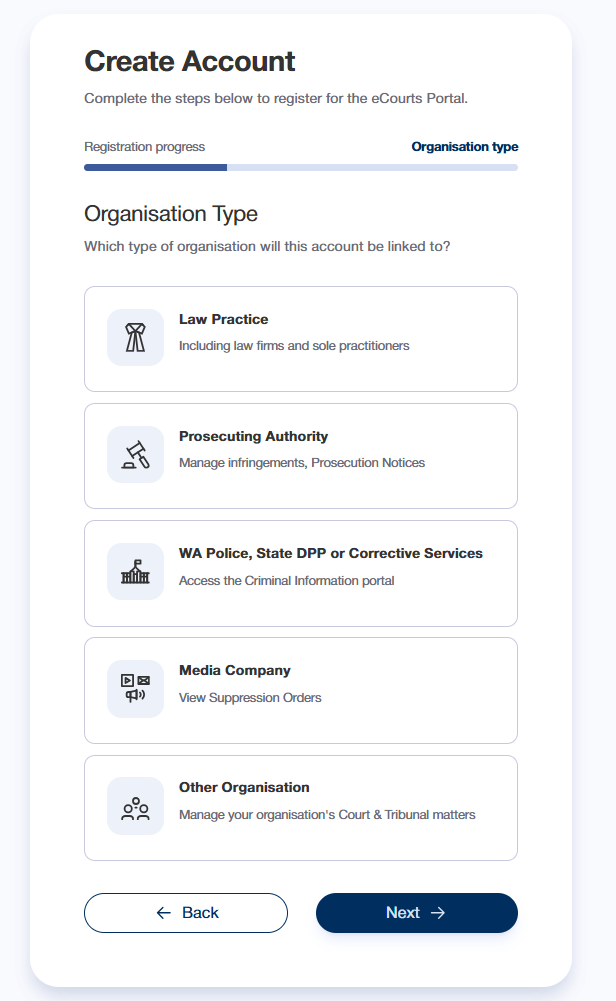
- On the Organisation Type page, select the type of organisation for your account.
This will determine which eCourts Portal services you can access. - Select Next
Jump to:
Register a Law Practice account
On the Registered Law Practice page, you must first check if your law practice is already registered for eCourts Portal
- Select the drop-down field to search for your law practice. You can filter the list by entering the name.
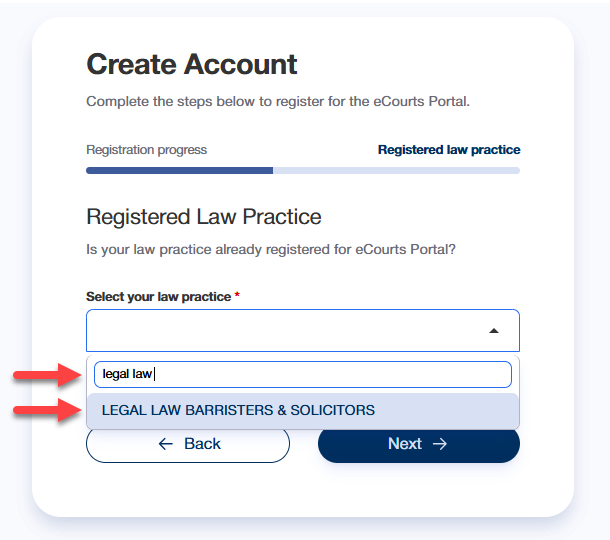
If your law practice is displayed in the list:
- Select the law practice
- Select Next
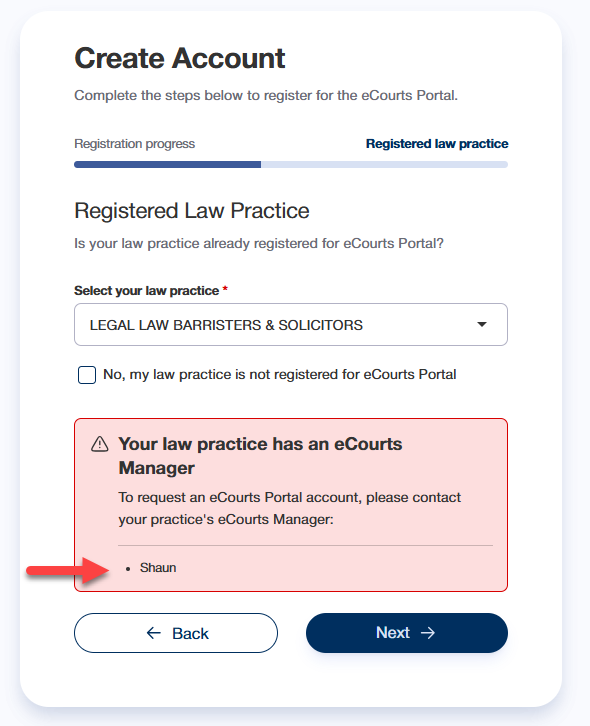
If your law practice has an "eCourts Manager" user, their name will be displayed
You cannot continue with this online registration - Contact this person in your organisation, to request they create your eCourts Portal account
End of help guide
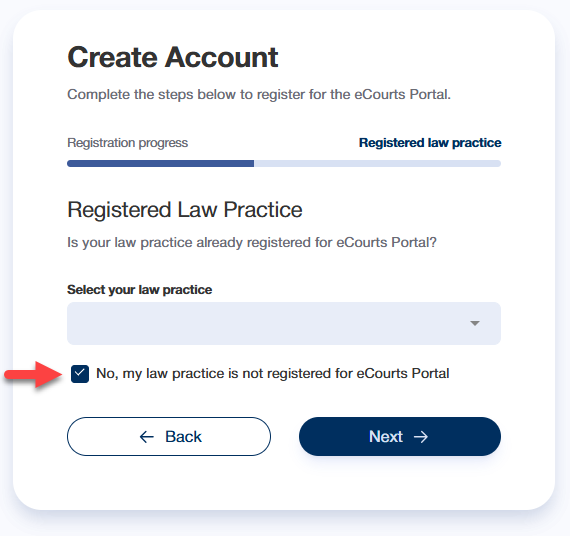
If your law practice is NOT displayed in the list:
- Select the No... checkbox
- Select Next
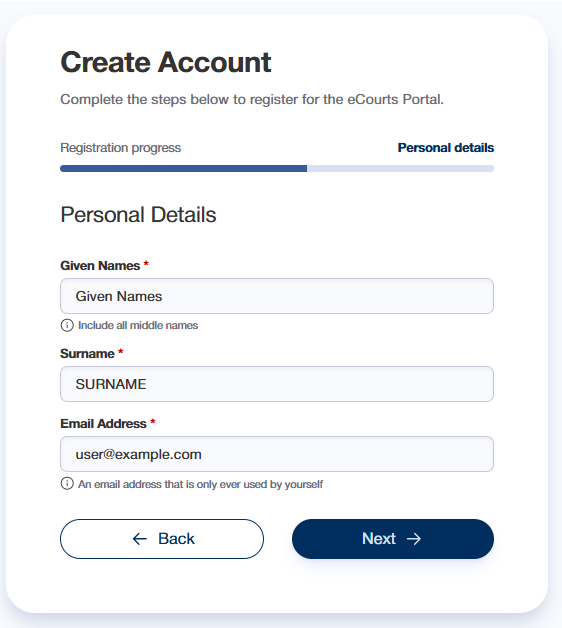
- On the Personal Details page, complete the fields
- Select Next
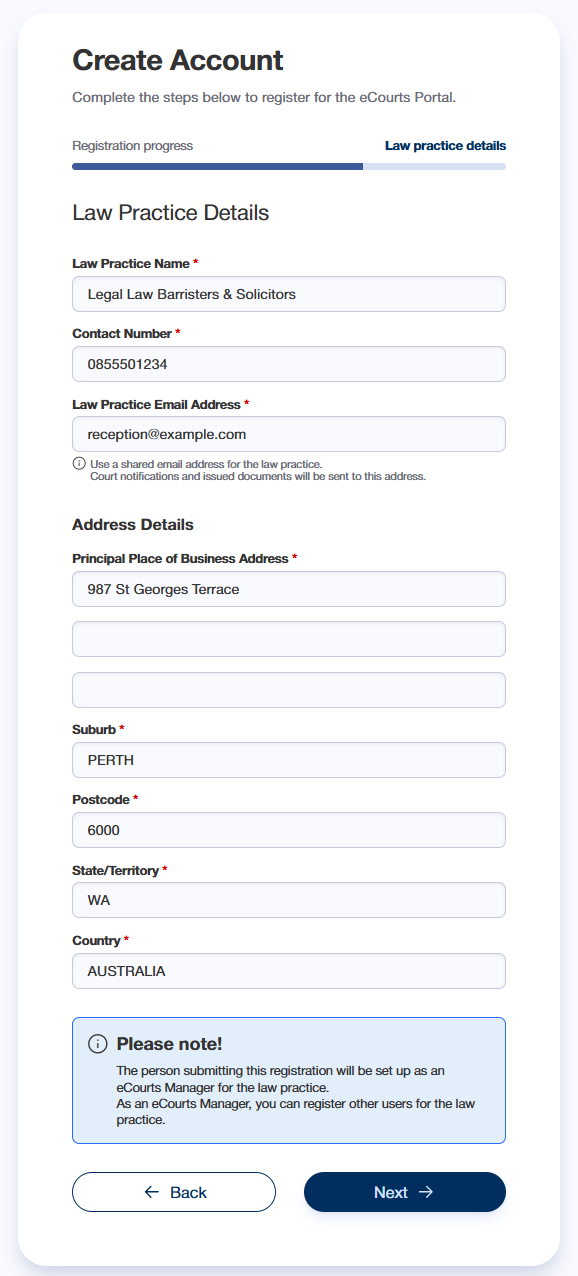
- On the Law Practice Details page, complete the fields
- Select Next
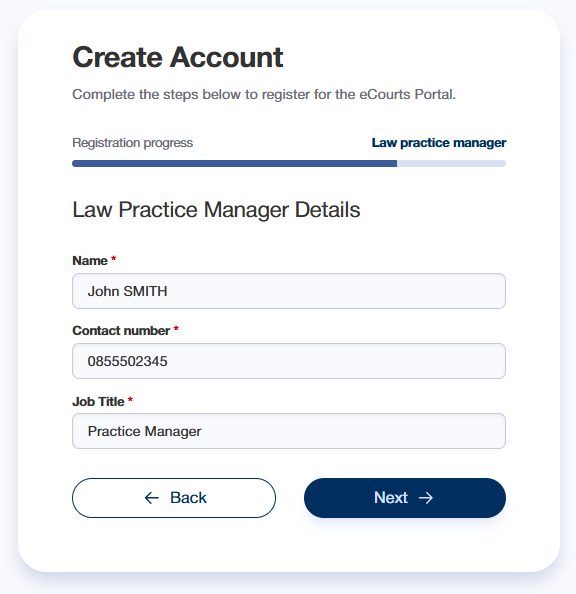
- On the Law Practice Manager Details page, complete the fields
- Select Next
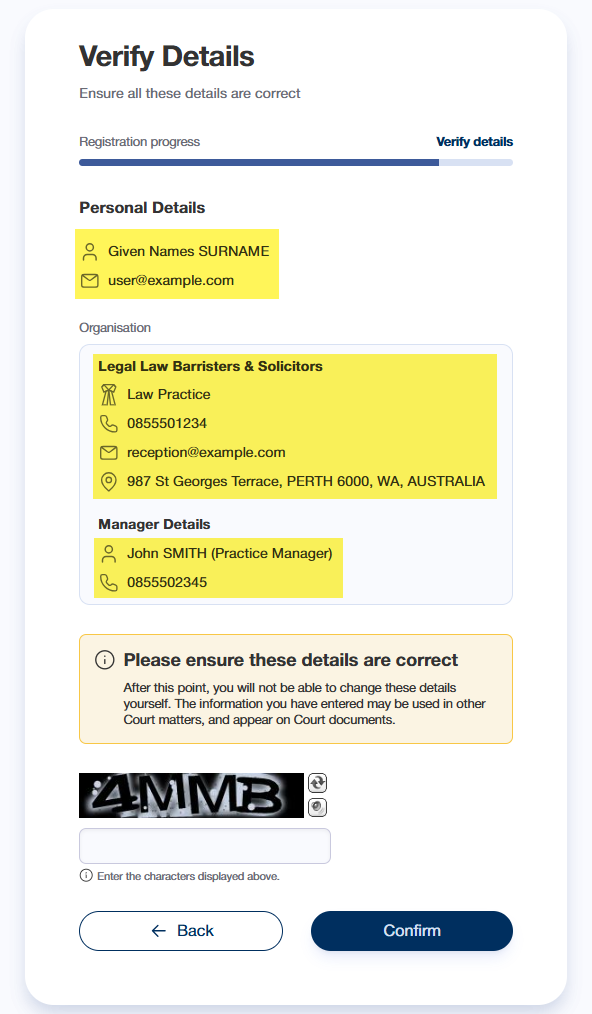
- On the Verify Details page, confirm that your personal details and the law practice details were entered correctly
If any details are incorrect, select Back to return the relevant page - Complete the CAPTCHA field - enter the characters displayed in the image above the field
- If the details are correct, select Confirm
- On the Steps Completed page, select Print Form to print your System Login Request Form
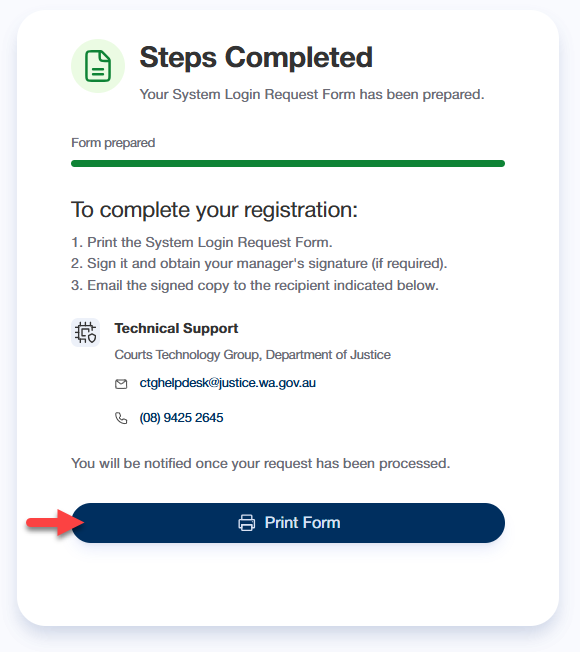
- Complete the form and follow the instructions for submitting the form
End of help guide
Register a Prosecuting Authority account
- On the Personal Details page, complete the fields
- Select Next
- On the Select your Prosecuting Authority page, select your prosecuting authority from the drop-down menu
You can filter the list by entering the name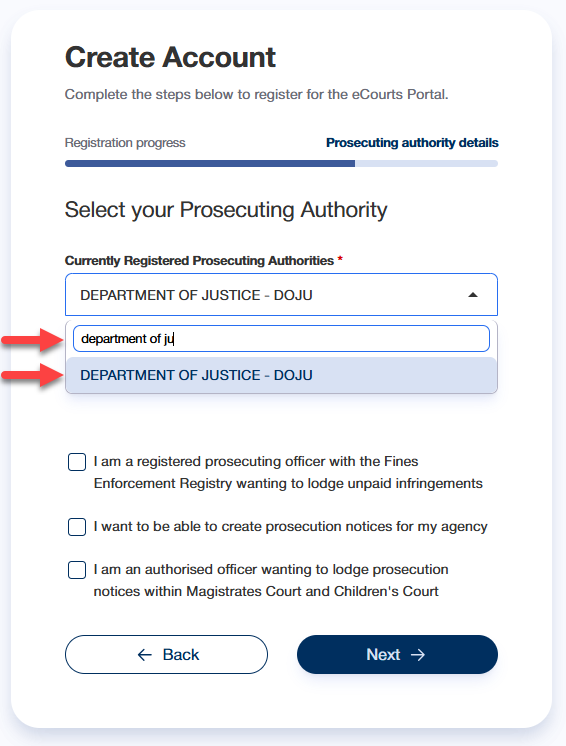
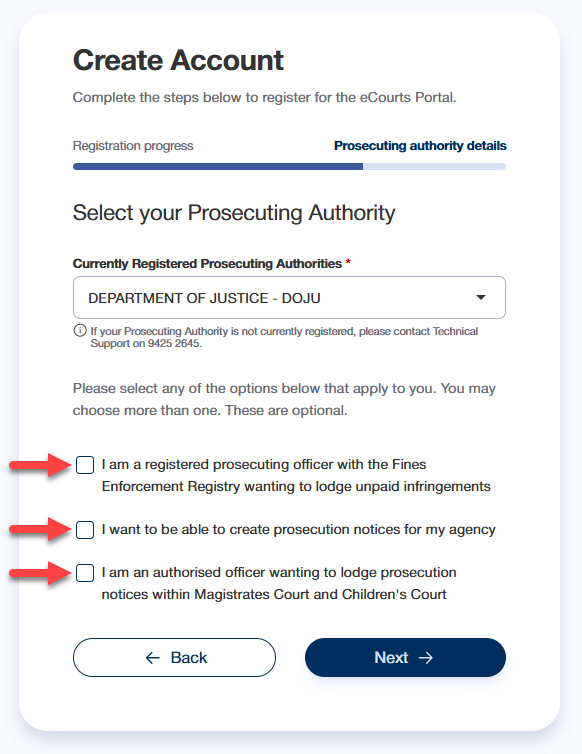
- OPTIONAL: Select the checkbox(es) for any functions required for your role
- Select Next
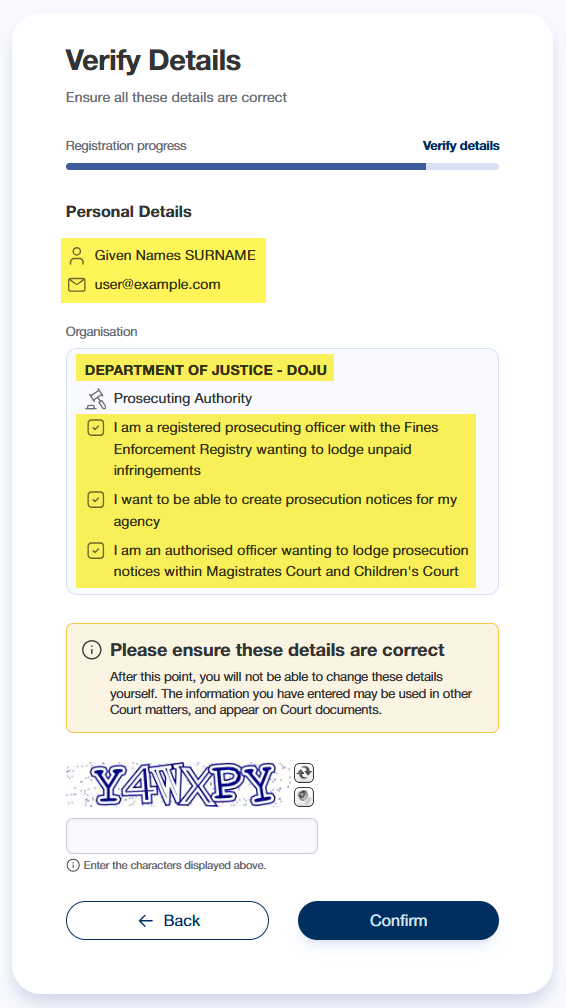
- On the Verify Details page, confirm that your personal details and the prosecuting authority details were entered correctly
If any details are incorrect, select Back to return the relevant page - Complete the CAPTCHA field - enter the characters displayed in the image above the field
- If the details are correct, select Confirm
- On the Steps Completed page, select Print Form to print your System Login Request Form
- Complete the form and follow the instructions for submitting the form
End of help guide
Register a WA Police, State DPP or Corrective Services account
- On the Personal Details page, complete the fields
- Select Next
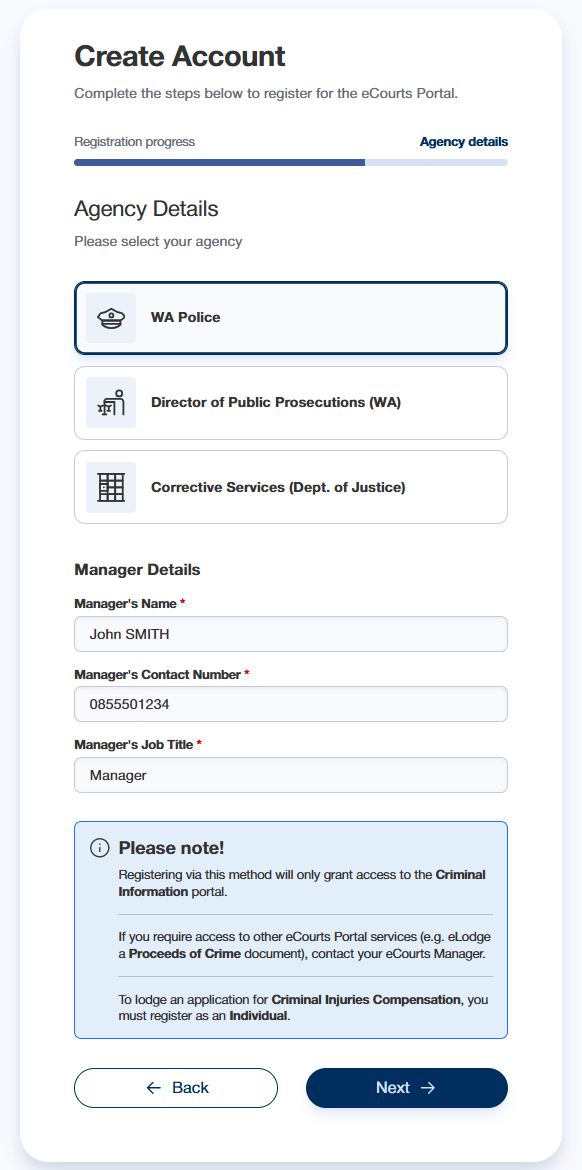
- On the Agency Details page, select your agency
- Enter your manager's details
- Select Next
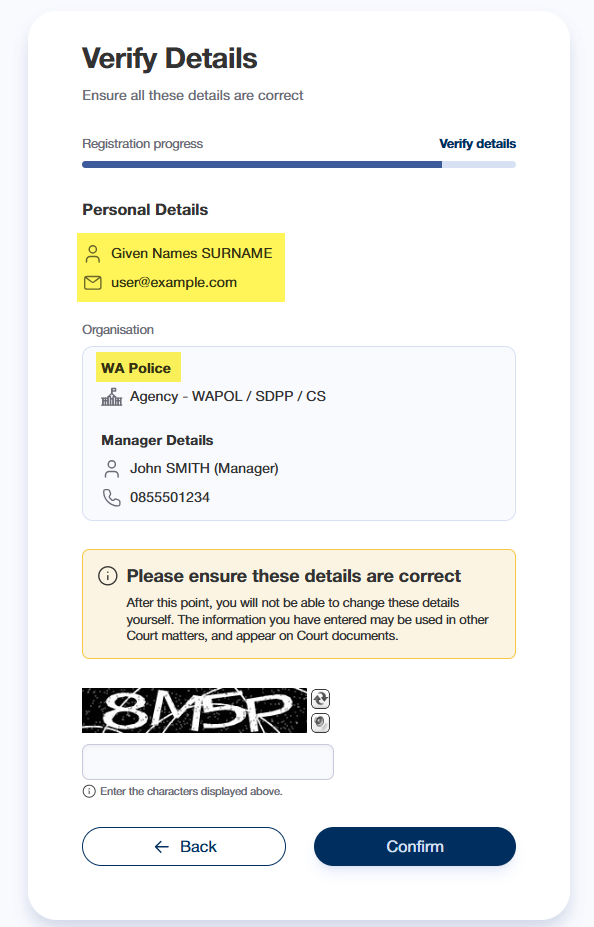
- On the Verify Details page, confirm that your personal details and the agency details were entered correctly
If any details are incorrect, select Back to return the relevant page - Complete the CAPTCHA field - enter the characters displayed in the image above the field
- If the details are correct, select Confirm
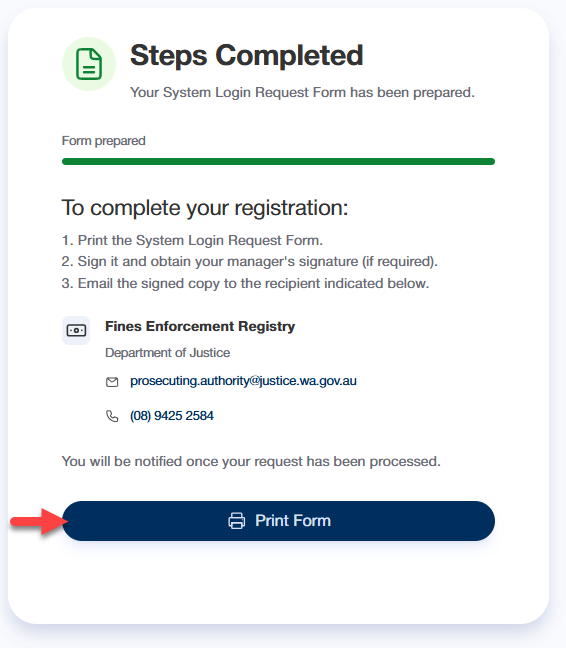
- On the Steps Completed page, select Print Form to print your System Login Request Form
- Complete the form and follow the instructions for submitting the form
End of help guide
Register a Media Company account
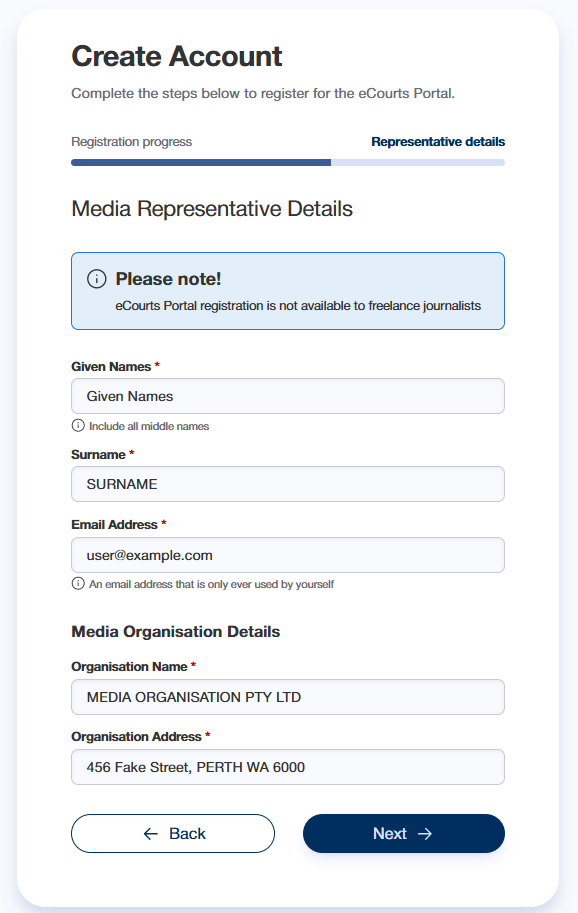
- On the Media Representative Details page, enter your personal details
- Enter your media organisation's details
- Select Next
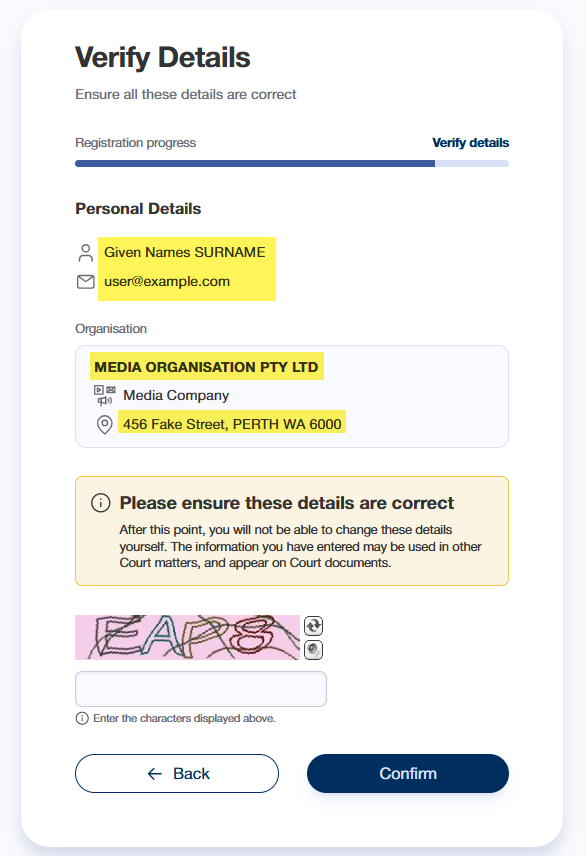
- On the Verify Details page, confirm that your personal details and the organisation details were entered correctly
If any details are incorrect, select Back to return the relevant page - Complete the CAPTCHA field - enter the characters displayed in the image above the field
- If the details are correct, select Confirm
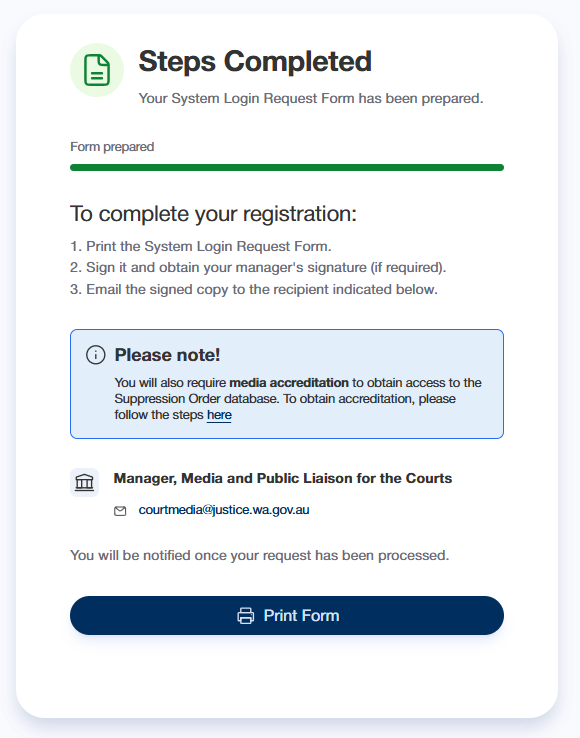
- On the Steps Completed page, select Print Form to print your System Login Request Form
- Complete the form and follow the instructions for submitting the form
End of help guide
Register an Organisation account
(Continued from: Help - Register an eCourts Portal account online)
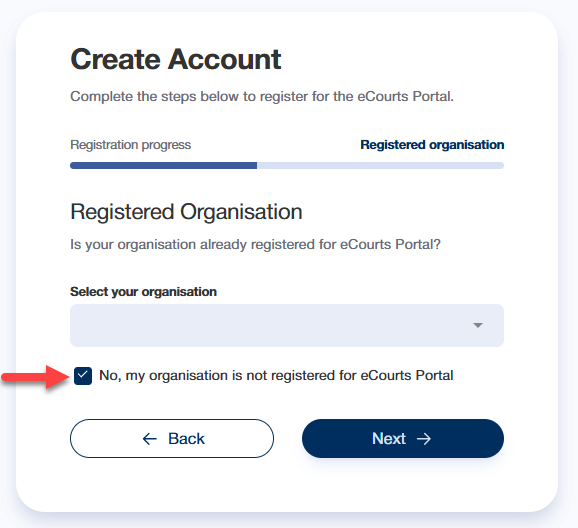
On the Registered Organisation page, you must first check if your organisation is already registered for eCourts Portal
- Select the drop-down field to search for your organisation. You can filter the list by entering the name.
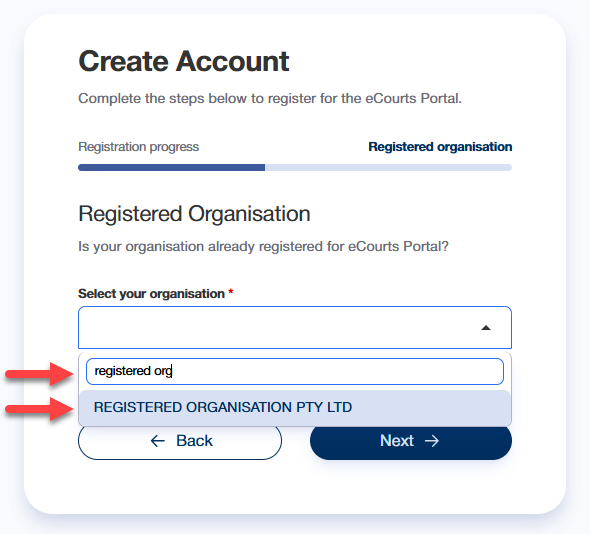
If your organisation is displayed in the list:
- Select the organisation
- Select Next
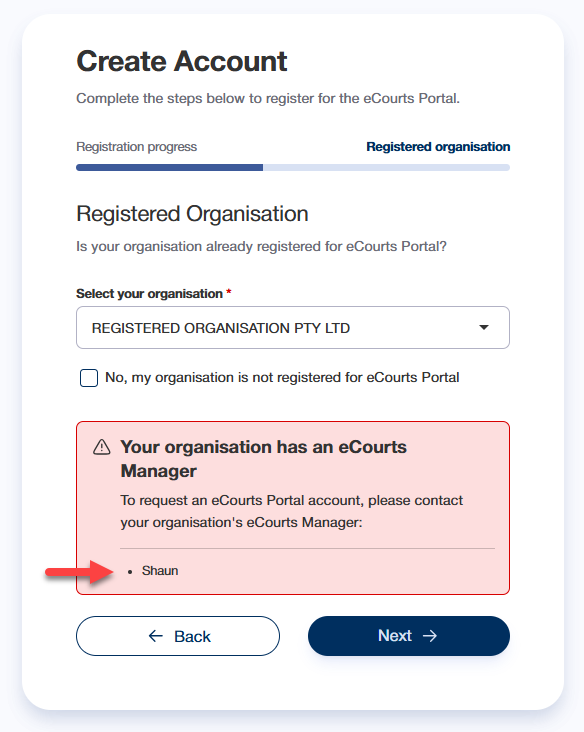
If your organisation has an "eCourts Manager" user, their name will be displayed.
You cannot continue with this registration - Contact this person in your organisation, to request they create your eCourts Portal account
End of help guide
If your organisation is NOT displayed in the list:
- Select the No... checkbox
- Select Next
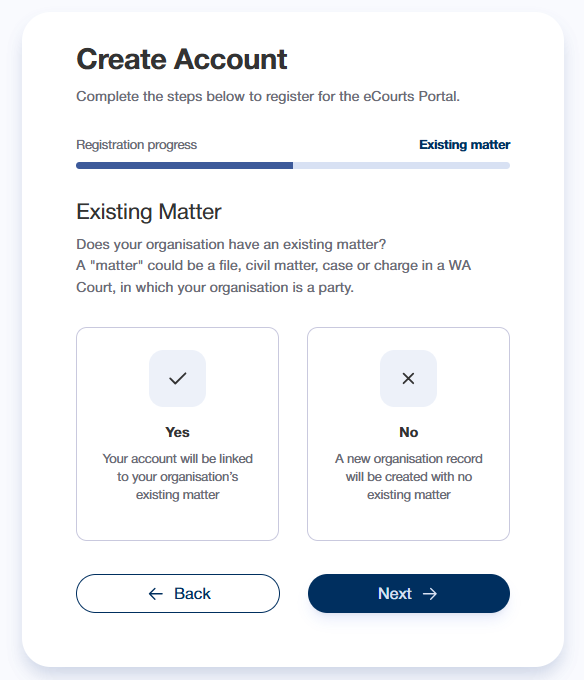
- On the Existing Matter page, select whether or not your organisation has an existing matter
|
A "matter" could be:
|
- Select Next
Next:
- Register as an Organisation with an existing matter
OR - Register as an Organisation with no existing matter
Register as an Organisation with an existing matter
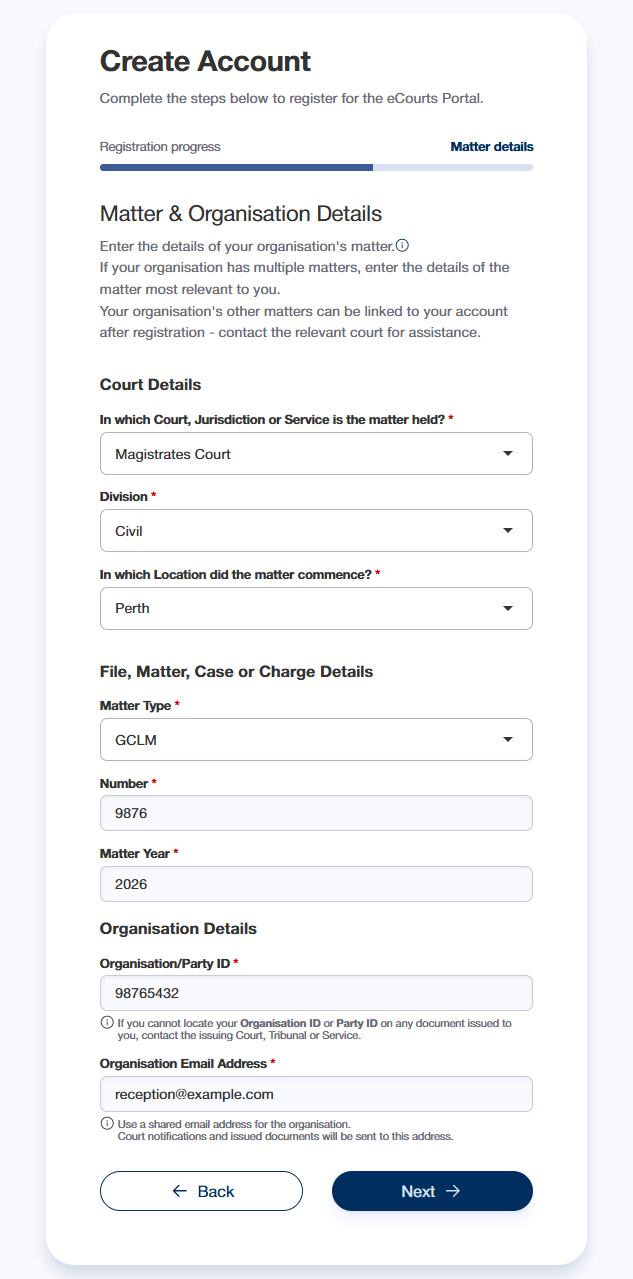
- On the Matter & Organisation Details page, enter the details of your organisation's matter
- Enter the Organisation ID / Party ID
|
For assistance locating the matter details on your court documents, see Help - Locate your matter details If you cannot locate the required details, contact the relevant court/tribunal registry |
- Enter the Organisation Email Address
- Select Next
|
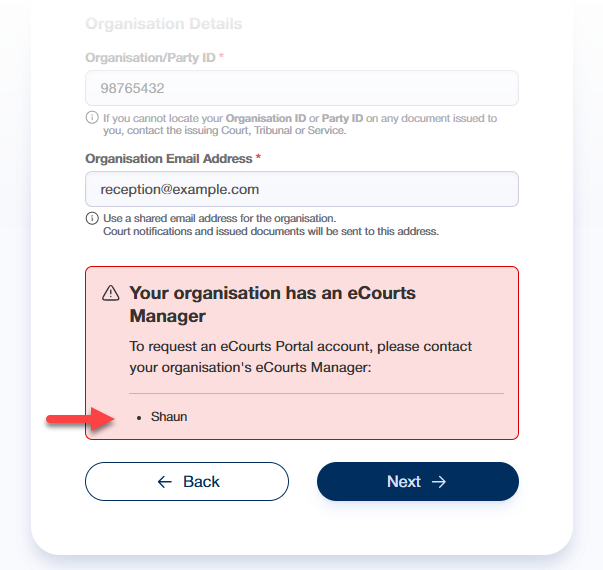
NOTE: If your organisation is already registered for eCourts Portal, you cannot proceed with your self-registration. If your organisation has an "eCourts Manager" user, their name will be displayed Contact this person in your organisation, to request they create your eCourts Portal account
|
- On the Personal Details page, complete the fields
- Select Next
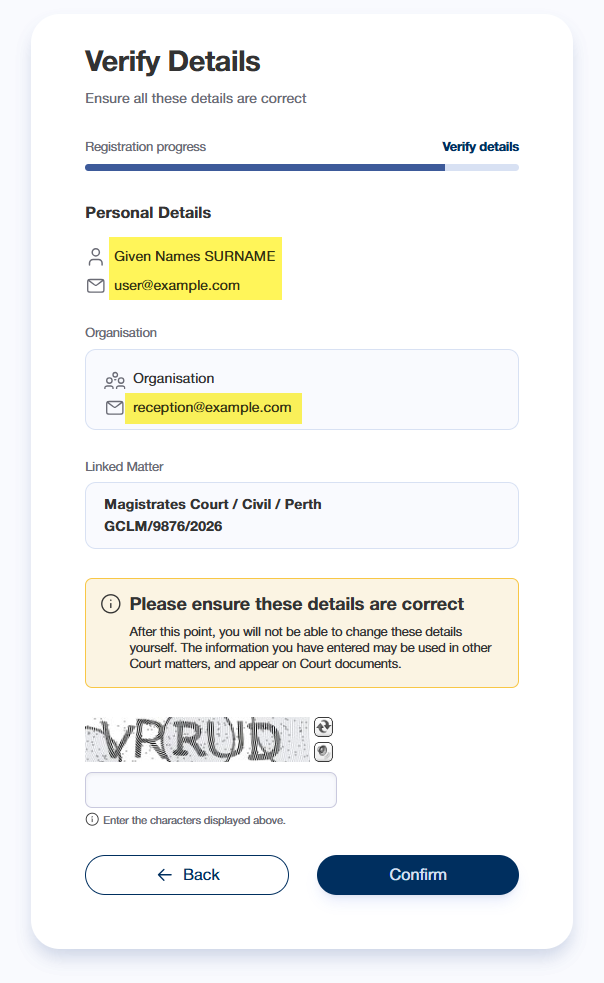
- On the Verify Details page, confirm that your personal details were entered correctly
If any details are incorrect, select Back to return the Personal Details page - Complete the CAPTCHA field - enter the characters displayed in the image above the field
- If the details are correct, select Confirm
The Account Registered page will be displayed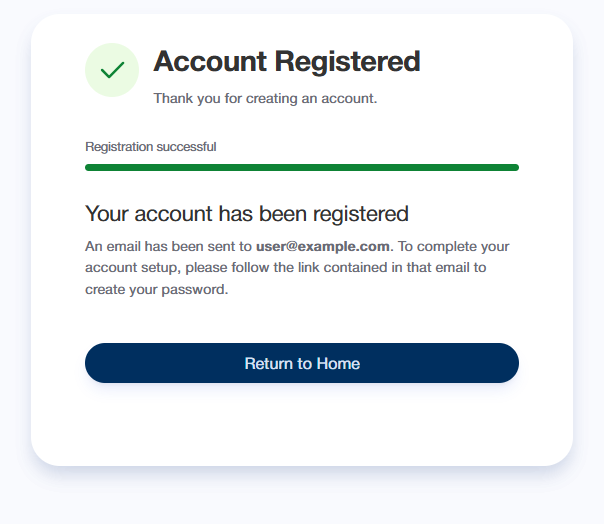
- Open the email received from CTG Helpdesk
Next: Create your eCourts Portal password
End of help guide
Register as an Organisation with no existing matter
- On the Personal Details page, complete the fields
- Select Next
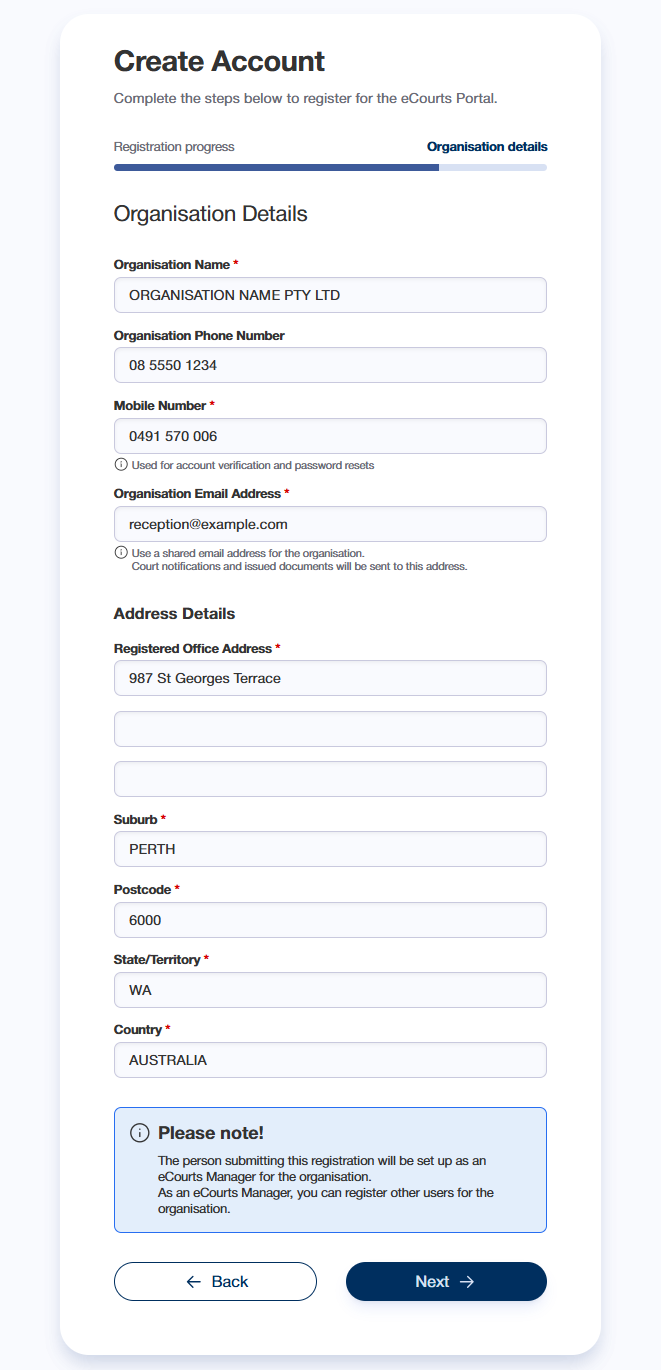
- On the Organisation Details page, complete the fields
- Select Next
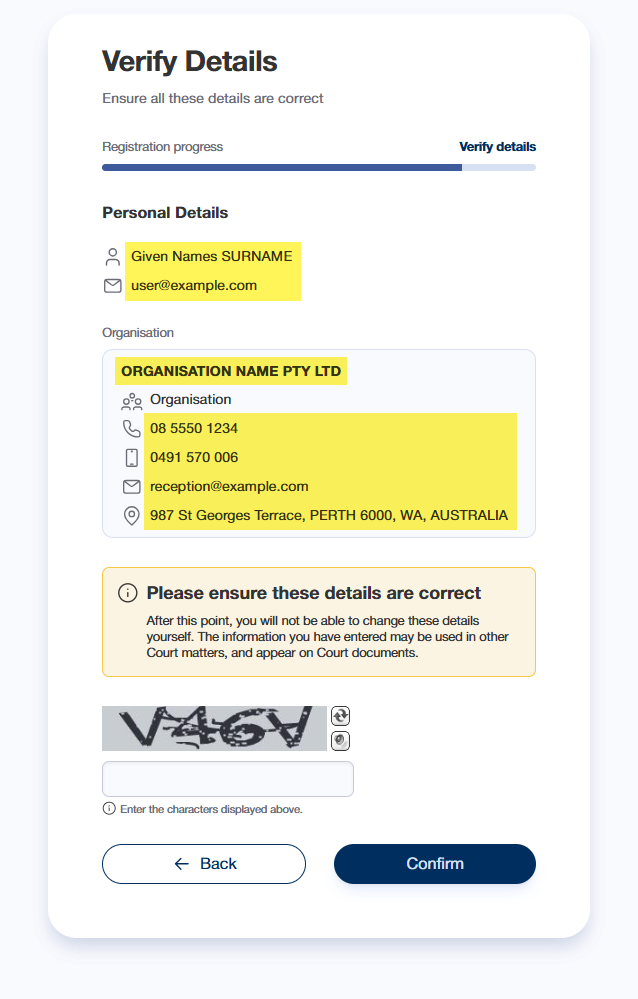
- On the Verify Details page, confirm that your personal details and the organisation details were entered correctly
If any details are incorrect, select Back to return the relevant page. - Complete the CAPTCHA field - enter the characters displayed in the image above the field
- If the details are correct, select Confirm
The Account Registered page will be displayed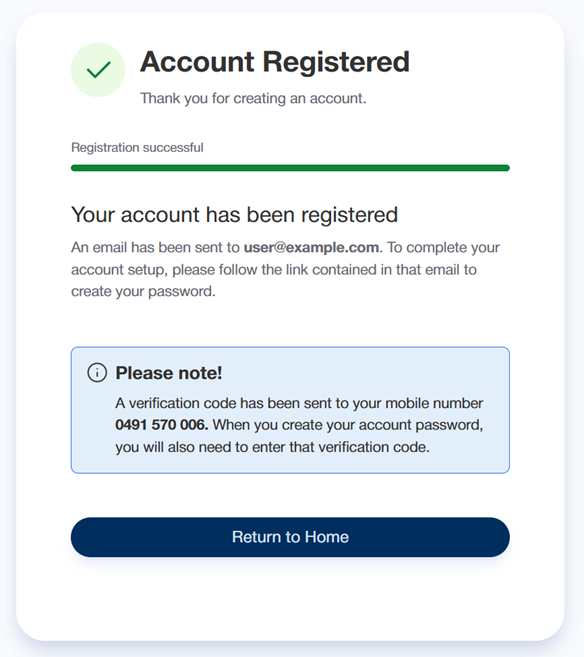
- Open the email received from CTG Helpdesk
Next: Create your eCourts Portal password
End of help guide